Supports auto-scheduled and manually scheduled tasks
Field planning
Lookaheads, pull board, work plans, and PPC included
Usually built with filters, add-ons, or spreadsheets
Field updates
Phone-friendly Field view, offline updates, and trade-limited access
Depends on your Microsoft plan and setup
Sharing
Free read-only links and view-only seats
Depends on your Microsoft plan and setup, or share PDFs and files
Files
Imports MSPDI XML, not .mpp yet. Exports MSPDI XML.
Native .mpp and XML
Primavera P6 is a product of Oracle, and Microsoft Project is a product of Microsoft. Product names are trademarks of their respective owners. schedule.construction is not affiliated with or endorsed by Oracle or Microsoft.
If you were on Project Online
Microsoft set a retirement date of September 30, 2026 for Project Online. Microsoft says Project desktop is not affected. If your team is deciding what to use next, construction work is a good reason to compare a construction-specific scheduler with Microsoft's recommended paths.
When schedule.construction makes sense
Your Project files are construction schedules with real logic, or should be
Superintendents and subs need to read and update the schedule without a Project license or installed app
Your lookahead lives in a spreadsheet that drifts away from the master schedule
You need to exchange files with P6 users as well as Project users
You want PPC and weekly commitments tied to schedule activities
When to keep Microsoft Project
You schedule many kinds of non-construction work and want one tool for all of it
Your process depends on manually scheduled tasks. Here, every task is scheduled from logic.
Your team has deep Project templates, macros, or integrations with other Microsoft tools
You only receive native .mpp files and can't get the sender to save them as XML
Move a Project schedule in and check it
In Microsoft Project, choose File → Save As and set the type to XML Format (*.xml).
Create a new project in schedule.construction, then choose File → Import schedule. Importing replaces that project's schedule.
Read the import trust report. Effort-driven task types, manually scheduled tasks, and leveling delays may not have a direct equivalent.
Compare the critical path and finish date with Project. If manually scheduled tasks moved, fix the missing logic instead of adding constraints.
Critical path filter and Gantt plus network dual pane
Baselines and as-built vs as-planned comparison
Multi-page Gantt PDFs on letter, tabloid, or ANSI D
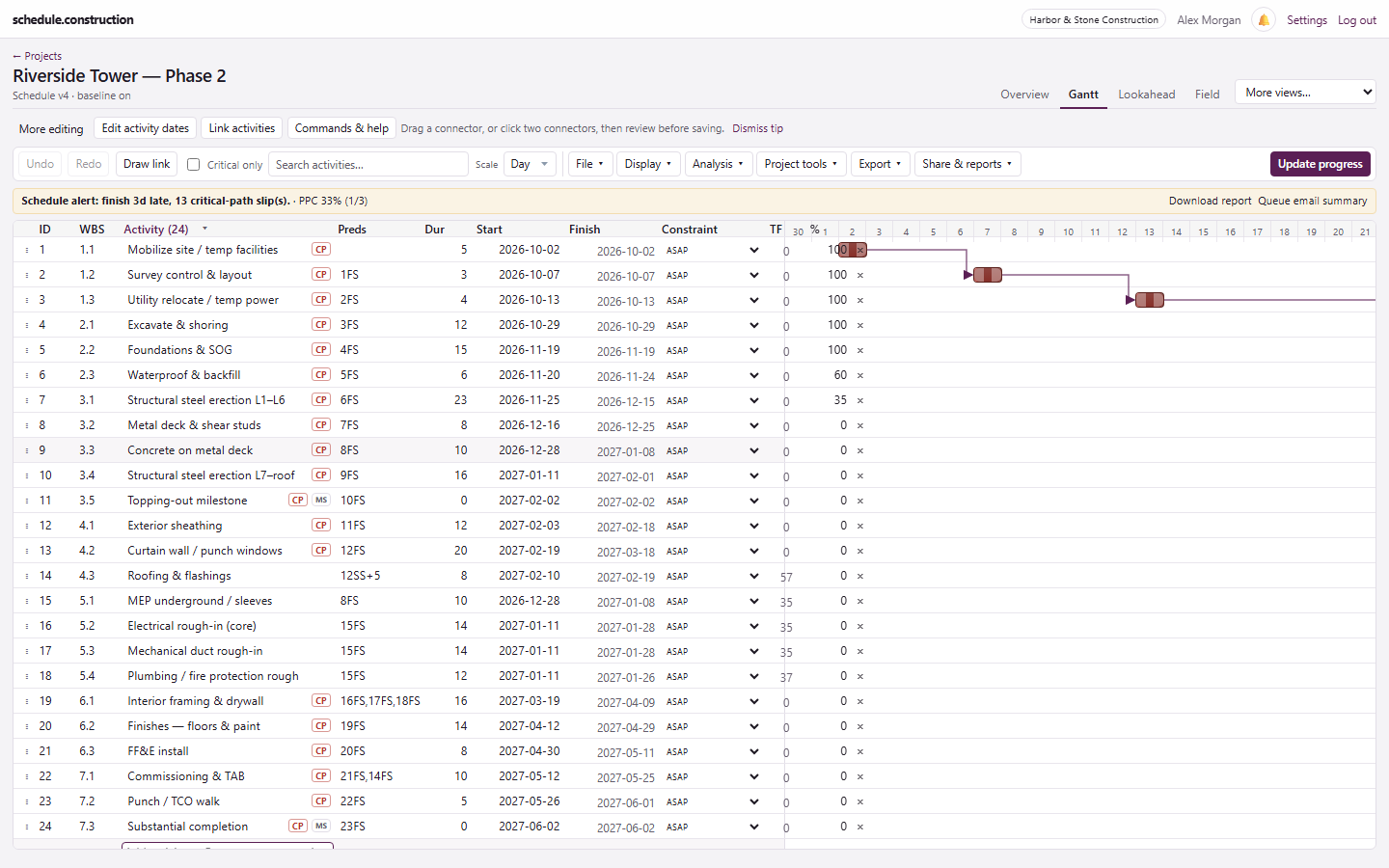
Interactive Gantt with critical path and dependency links.
Frequently asked questions
Can schedule.construction open .mpp files?
Not yet. Save the schedule as XML in Microsoft Project first (File → Save As → XML Format), then import the XML file. If someone sent you an .mpp and you don't have Project, ask them to save it as XML.
Why did my manually scheduled tasks move after import?
schedule.construction always schedules from logic. A task that moves usually had incomplete logic in Project, so add the missing links rather than a constraint.
Can I export back to Microsoft Project?
Yes. Export to MSPDI to create an XML file, then open it in Project with File → Open.
Does it replace Project Online?
It replaces construction scheduling work, not Project Online as a whole. It isn't a general portfolio, timesheet, or resource management system across all kinds of work.
Do owners and subs need a paid seat to see the schedule?
No. Read-only share links need no account, and view-only seats are free.